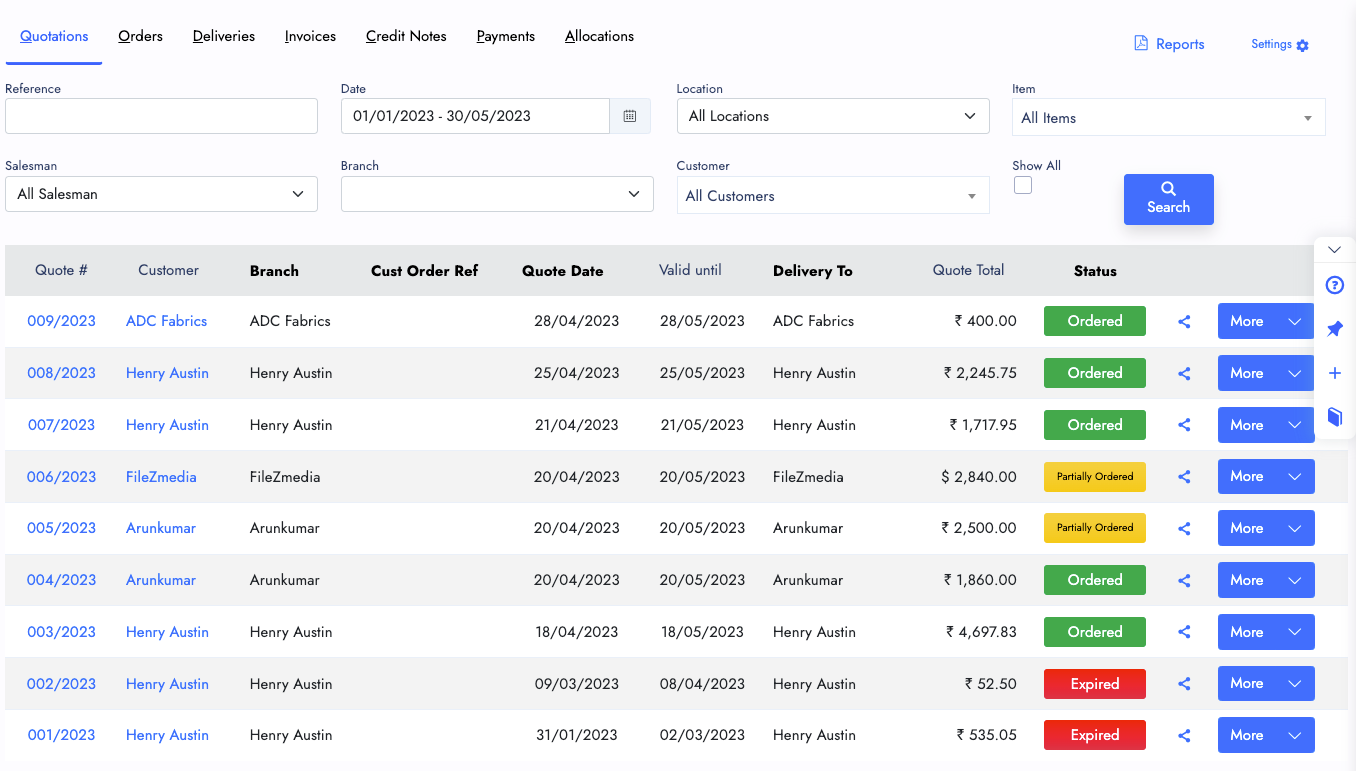
Sales Quotation
Create, Edit, Share, Update, Remove(if necessary) With your Sales quotes. Easy and everyone can create Sales Quote and share it. From the sales quote you can provide the Sales Type, Payment Terms, Expected Close date, And Full information of Quote along with Customer information includes the contact and other details.
After Creating the Sales Quote successfully, You can share it to the Customer through, Email, Whatsapp, and a direct link.
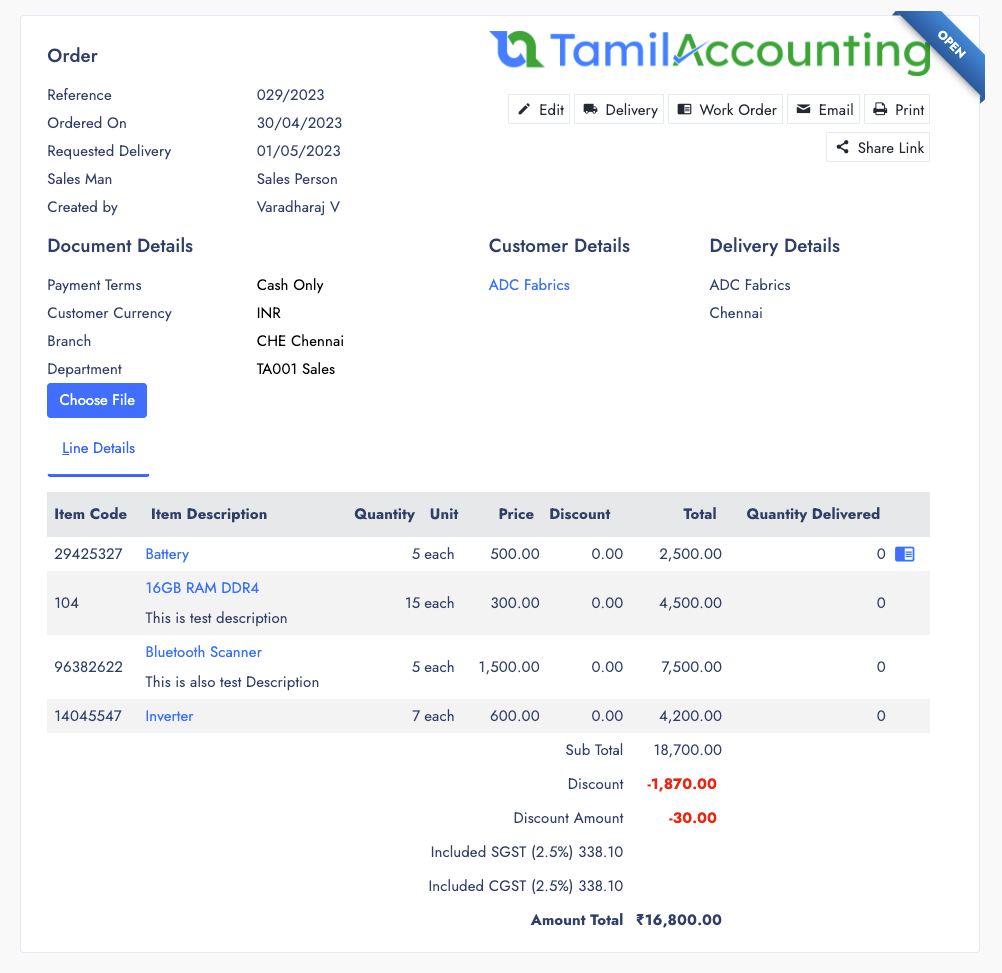
Order
You can Prepare Order from Sales Quote, or From Proposal. Ofcourse you can create Direct Sales order too. This sales order can be Either Prepaid or Post paid. And if its prepaid the Payment needs to be done before the delivery of goods/Service.
Sales Order comes with Expected Delivery date along with delivery address details, With Sales Order you can able to do
- Sales Delivery - If you have stock, You can perform delivery
- Work order - If the items is Manufacturable item, So you can prepare the work order from this Sales order.
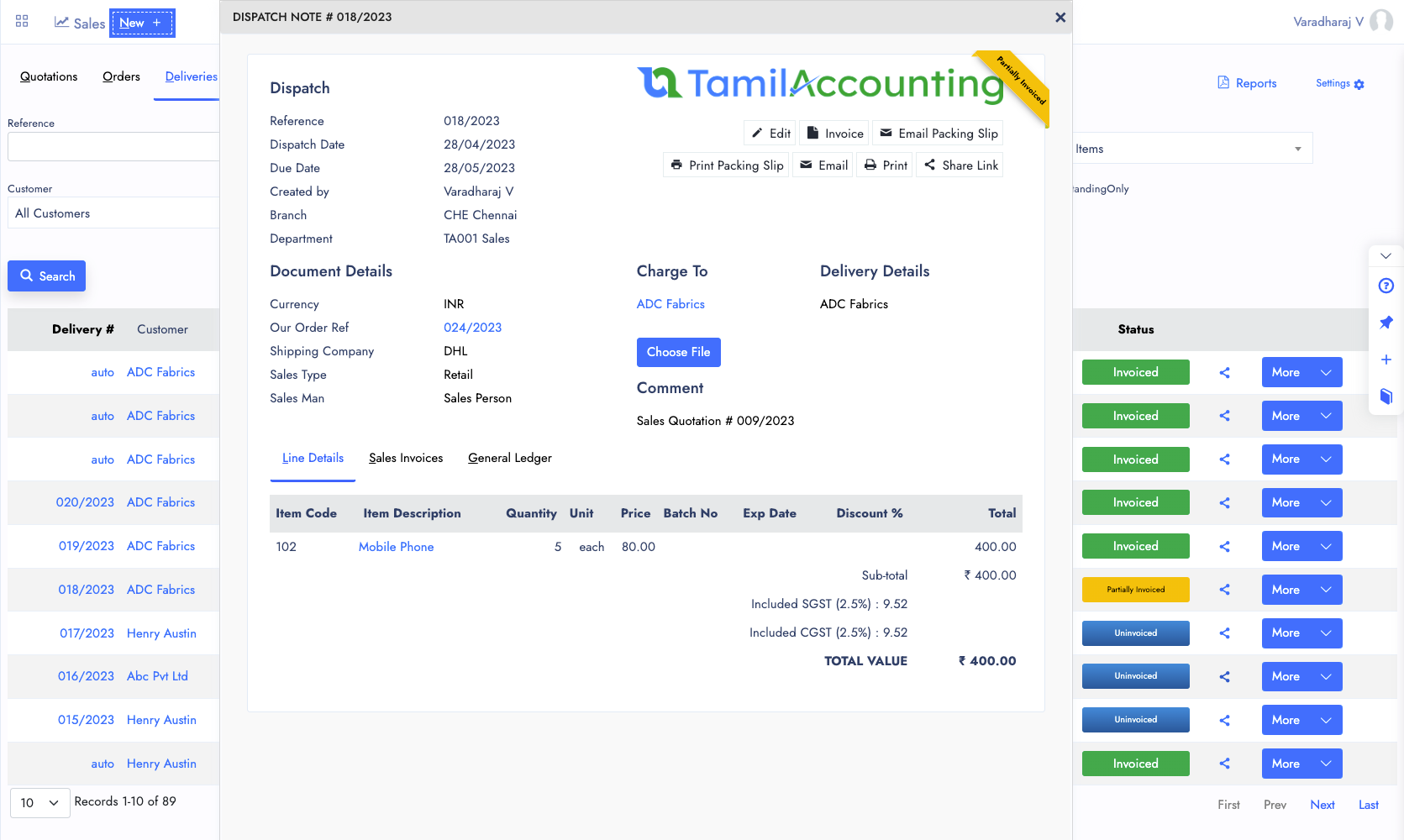
Sales Delivery
You can make Both Direct Delivery or Delivery from Sales order is possible. Until this transaction type, you can able to delete it. But the delivery makes Journal entry. So you can able to void it instead of deleting it.
From Delivery if your products has Batch and Expiry dates, you can choose it before make the delivery. And from Delivery you can proceed making the Invoice for the delivered quantities
Multiple invoices are also possible from one Delivery. Delivery can also make the Journal entry for inventory account.
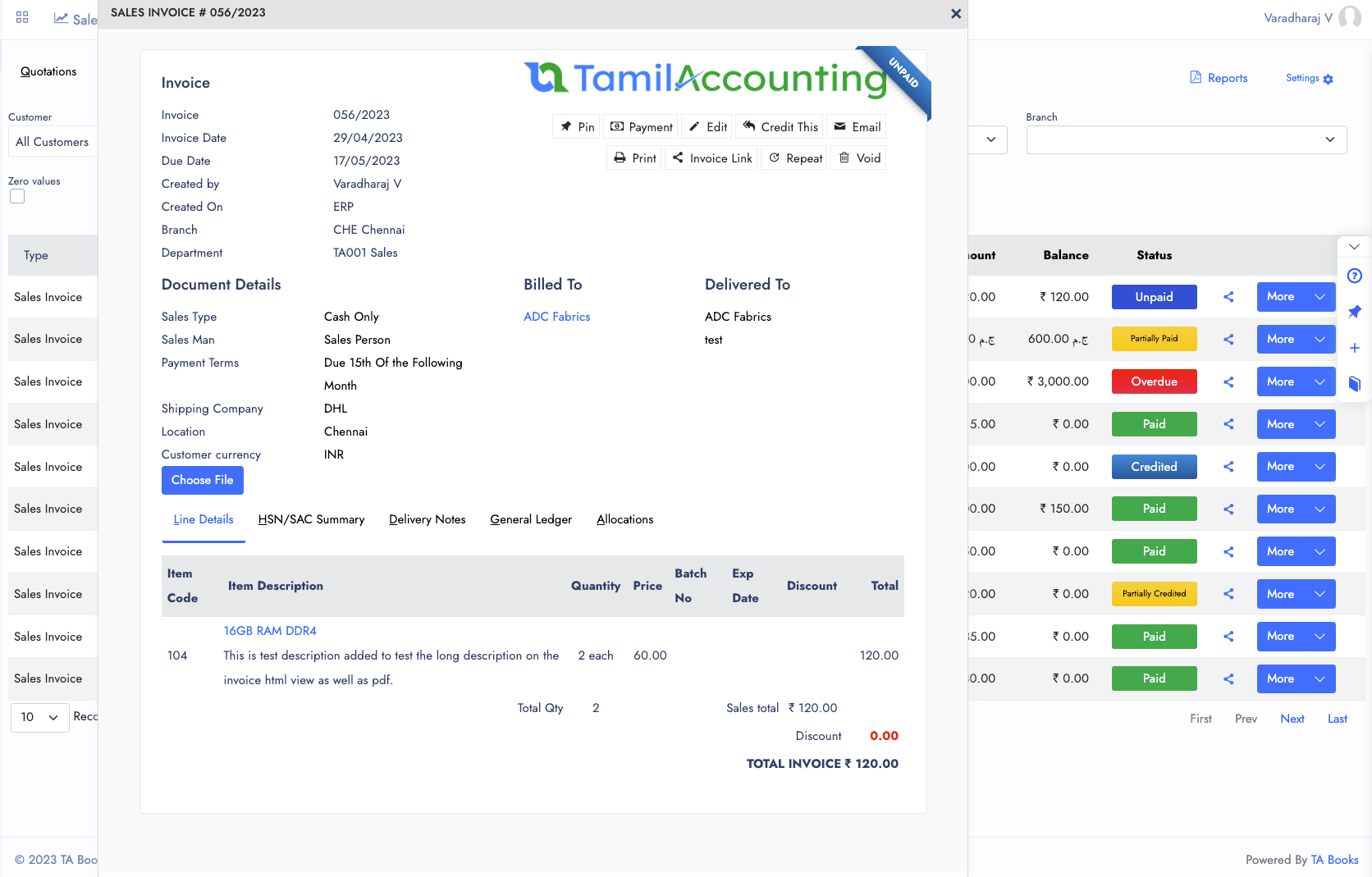
Sales Invoice
Invoice can be created in both ways, it can be as Direct Invoice, or Invoice from Delivery. If you are making Invoice, the Reference sequence is also important to monitor here. We are following the invoice number sequence in separate setup, which helps to create and change any format which requires your business or country you can create it.
You can create Sales invoice with directly paid and unpaid invoice. If the invoices are unpaid, the System helps to monitor the Unpaid and Overdues with it.
From Sales Invoice You can record payment or credit the invoice, and also share the transaction. And if necessary you can edit full or partial information of the invoice from here.
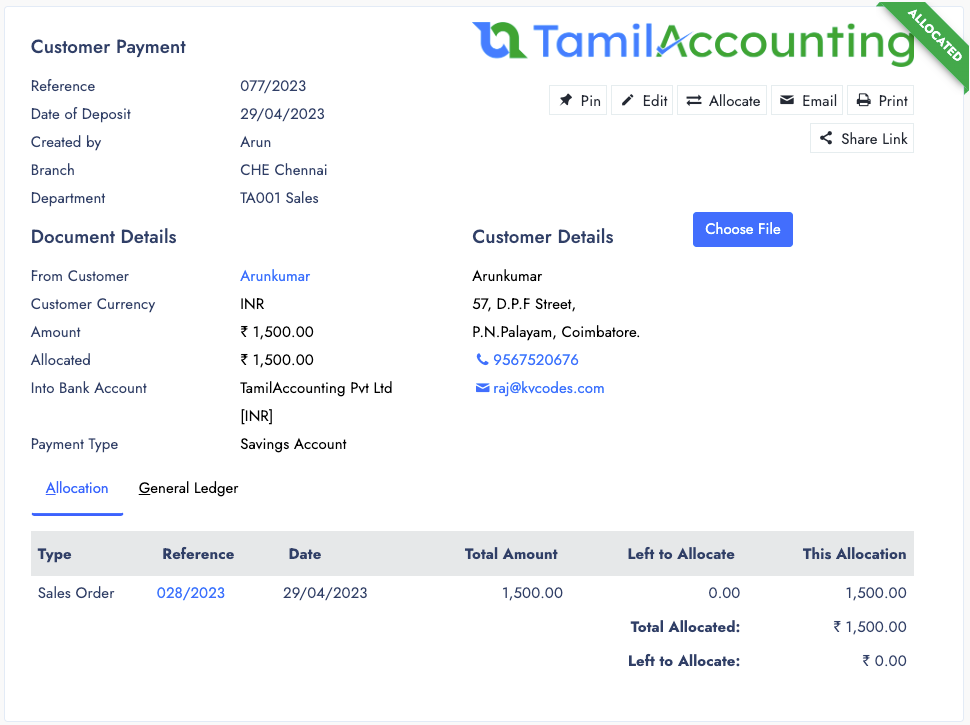
Customer Payments
For each Invoice, we have to get payment from the customer. Either it can be one payment for multiple invoice or multiple payment for a single invoice
Payment Status Such as
- Partiall Allocated
- Unallocated
- Allocated
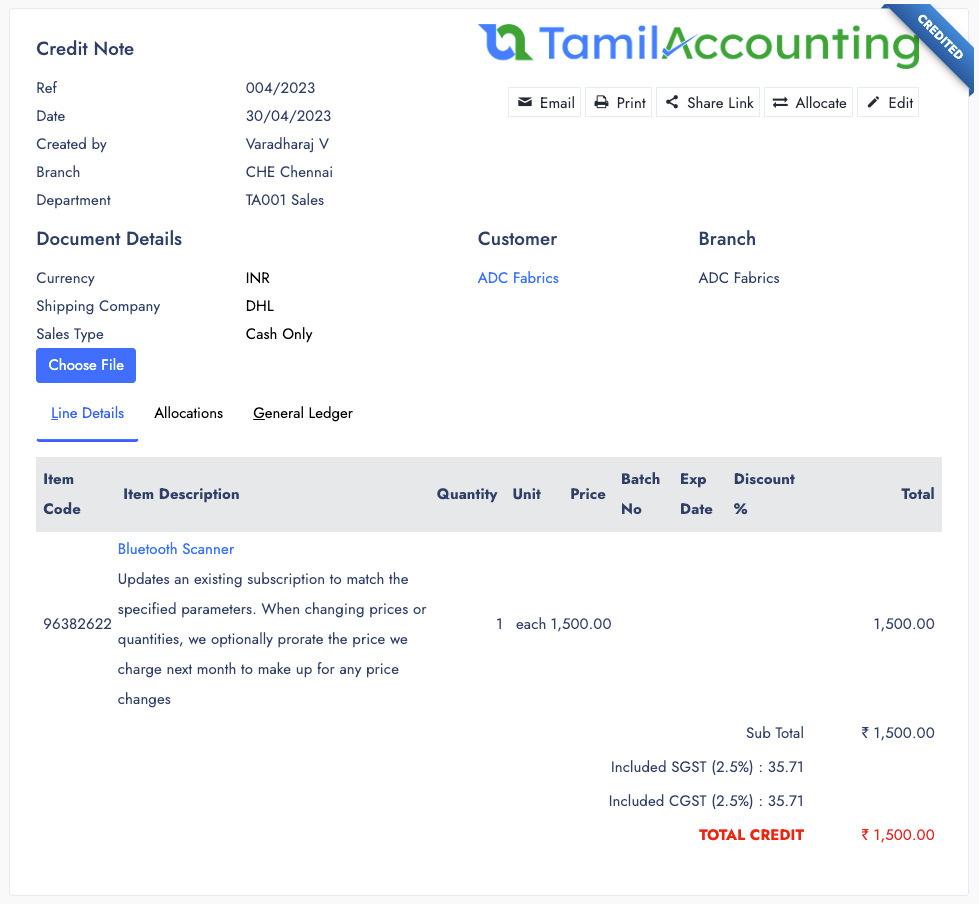
Sales Credit Note
You can make Both Direct Delivery or Delivery from Sales order is possible. Until this transaction type, you can able to delete it. But the delivery makes Journal entry. So you can able to void it instead of deleting it.
From Delivery if your products has Batch and Expiry dates, you can choose it before make the delivery. And from Delivery you can proceed making the Invoice for the delivered quantities
Multiple invoices are also possible from one Delivery. Delivery can also make the Journal entry for inventory account.
Reports
With help of Sales Report you can get several reports in both Excel and PDF.
- Customer Transaction Reports
- Age customer Analysis Reports
- Customer Balance
- Outstanding Summary
- Customer Trial Balance
- Order & Quotes Summary
- Return Summary
- Sales Summary
- Sales Profitablity
- POS Balance and Daily Balance
- Salesman Listing & Recovery
Other Features of Transaction Sharing
Transaction sharing comes with several features which helps you share and collaborate instantly.
Encrypted URLs
All shareable transaction links are secured with encrypted public URLs so only the right people can access them.
Email & WhatsApp
Share transactions directly via Email or WhatsApp with a single click from any transaction view page.
Customer Portal
Customers can view and download their invoices, orders and payment history through the self-service portal.
E-Invoice
Generate and share compliant e-invoices that meet local government regulations and standards.
Quotes
Quotes can be shared with private URL. It's encrypted and shared with it.
Orders
Orders can be shared with private URL. It's encrypted and shared with it.
Purchase Order
Purchase Order can also shared with encrypted URL, It can be shared with you suppliers with basic link sharing through social media's
Ready to share transactions instantly?
Join thousands of businesses across India, UAE & GCC using TA Book